- Access the Admin Dashboard link: https://dashboard.hart.com/
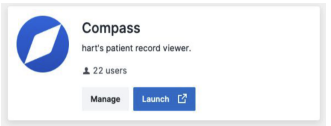
- From the Main screen, select Manage
- The next page will show you your current list of users
- To add a new user, click the Add button
- The Add Users popup menu will appear.
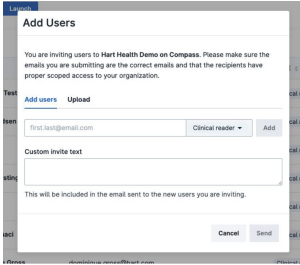
- Enter the email address and select the permission type you would like.
- You can enter one at a time, or using the Upload tab you can upload a list of users.
- Note: Most organizations only have Clinical Reader as the option to select
- The Add Users popup menu will appear.
- Enter custom invite text if desired. This is where you enter text that will come in the body of the email invite when it is sent to the new user.
- Best practice is to include information on why they are being invited to access the tool and the link they will use to navigate to it once they set up their HartID
- Select the Send Button
- To Edit or remove an existing user:
- From the Users menu, hover over the user you are trying to edit
- The menu options will appear to the right of the role.
- Select Edit or Remove to complete the action
English
![5-1.png]](https://hart.com/hs-fs/hubfs/5-1.png?height=50&name=5-1.png)